

Even though SolidConnect uses SolidEdge using a mainly local appraoch, to use SolidConnect effectively with TeamCenter, there are a few changes you should make to your settings.
Name formula
If you only see [Object] and no descriptive names like:
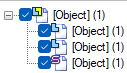
Go to settings > SolidEdge > General, Disable 
Then go to SolidConnect > General and configure the default name formula using the properties you want to display.
Unwanted Related files
If your related files show many files you don’t want like this:
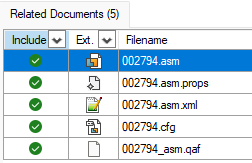
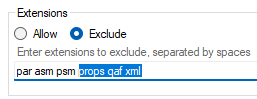
Go to Settings > General > Find Related Files. There duplicate the first two rules then disable the original rules. Then edit both rules and add 'props qaf xml' to the existing excluded extensions

Missing Related Files
Note that SolidConnect can only show related files using the Find Related files settings and only local files. That means that any TeamCenter files not available locally are not found.
Incorrect Status
If the status displayed in SolidConnect of products is incorrect, Go to settings > SolidEdge > General, and enter the actual property name of status:

This can be found via SolidEdge File Properties under Custom (Mapped):

For TeamCenter X users this should likely be ItemRev_REL_STATUS as shown in the example above.
Search for the row under File properties > Custom (mapped) that shows the mapping column as ItemRevision.last_release_status.object_string.