

License Types
SolidConnect has a few different license types:
-
Trial: you can request a trial directly from the application. Only one trial can be requested per computer
-
Subscription: When you have a paid subscription to SolidConnect you have access to tokens, tokens allow you to unlock modules of SolidConnect. Each module requires some amount of tokens, but you can activate/deactivate these modules after a delay, this way you can choose/test/change different modules or move them to a different user of the same license.
-
Beta test license: For specific users we give out a beta test license, this license is the only license that works on our beta version, this same license also allows you to use the release version on the same computer.
-
Offline license: For specific users an offline license is possible, this is only for users who cannot give internet access to SolidConnect. The activation for this license is described below.
The license system of SolidConnect can take some time, please be patient while it is busy.
If you experience slow startup due to Checking License every time you start SolidConnect, please contact support
License Manager
To get to the license manager you can click the Trial / Activate button in the popup below that should appear when starting SolidConnect without a license:
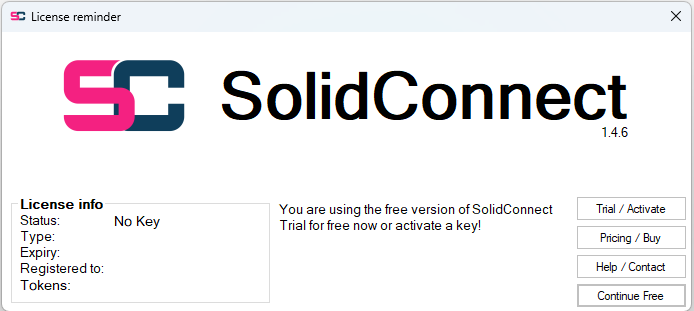
Alternatively you can open the license manager with the 
The license manager looks like this:
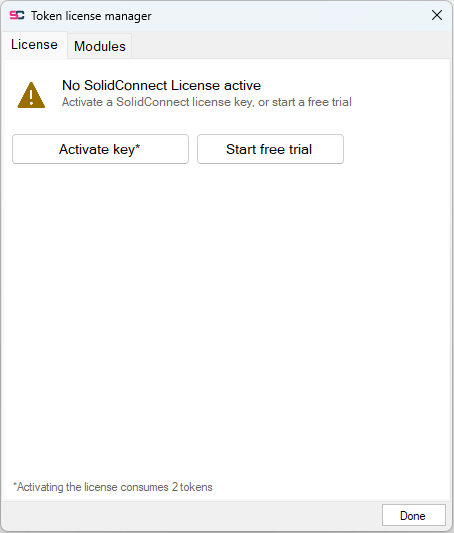
Here you can get a trial, activate a key and activate/deactivate modules using tokens
Request a Trial
-
In the license manager window, press the button that says ‘Get free trial’. If this button says ‘Trial already used’ you probably have already requested a trial before on this computer, if you believe this is wrong, contact Enginia.
-
Another window will popup asking for some basic information such as your name, company and email address. Once you are done entering your information, press Confirm.
-
Please wait while your trial is being requested. If the loading window disappears without an error, your trials should be active.
Activate a License
-
In the license manager window, press the button saying ‘Activate key’
If this button says ‘Use a different key’ you likely already have a license, you can press it if you want to activate a different key. You can always re-activate your current key, it might help resolve issues. -
If the loading window disappears without an error, your license should be active.
*Activating a SolidConnect License consumes 2 tokens
Activating modules using Tokens
Modules are managed on the second tab of the License manager:
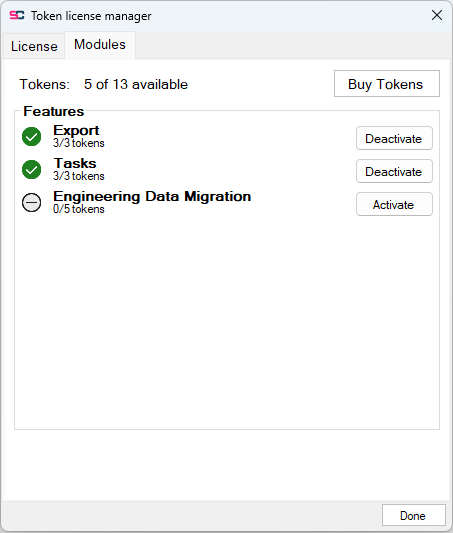
If you have an valid license you should see activate/deactivate buttons besides each module as shown below:

Every module of SolidConnect costs some tokens, the Export module shown above costs 3 and is currently not active
You can press activate to spend 3 tokens to activate this module. You can see how many tokens are available in the License info section: Please wait patiently while your tokens are being checked and activated.
You should see your export module is now active

You can press deactivate, to deactivate the module again and free those token for other modules or computers. This however has a delay of 24h, you cannot immediately deactivate a module after activating it. Please wait patiently while your tokens are being checked and deactivated.
Offline License Activation
-
Install SolidConnect on the destination computer
-
Go to the application files and run ‘Activate Offline License Step 1’
-
A window will popup with a unique code for that computer
-
Send this code (along with you activation key) to us, we will then send back a ‘computer key’ which you need to finish the activation
-
When you have received your computer key, go to the application files and run ‘Activate Offline License Step 2’
-
A window will popup, enter your activation key, press ok
-
A second window will popup, enter the computer key you received from us, press ok
-
If no warning pops up, your license should now be active, you can run SolidConnect normally to verify.
If you want to deactivate this license, you will need to go to the application files and run ‘Deactivate Offline License’ then send this verification code to Enginia (valid for 1 day).
<< Installation of SolidConnect The Basics >>