

Go to Settings>>Solid Edge>>Properties
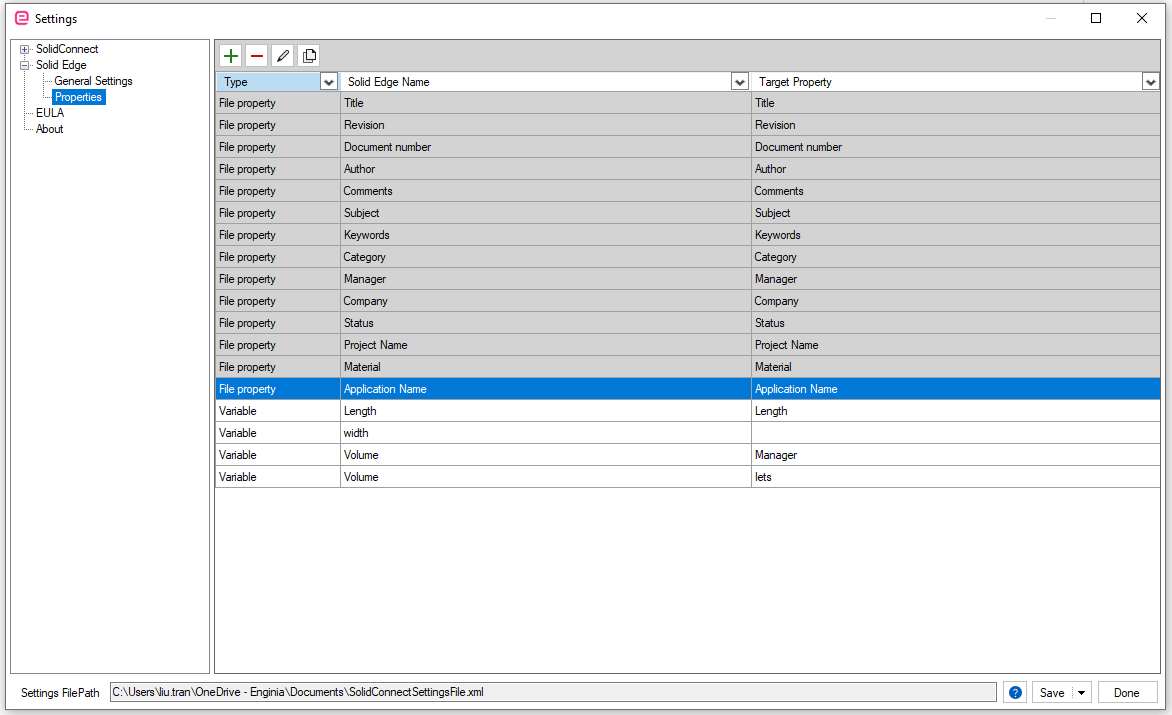
These settings are used to configure how the data should be imported from Solid Edge. The default file properties are greyed out, these cannot be deleted, but the target property name can be changed.
Add
Click the '+' button to add a new property from Solid Edge. An option menu will appear as shown:
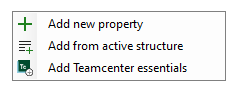
Add new property
Choose this option to add a new property that retrieves data from Solid Edge. Click 'Add new property' to display the following pop-up on your screen.
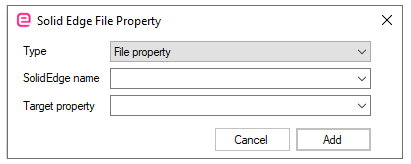
Type
Choose one of three options for the Type:
-
File property: Properties stored directly in the files. Open in Solid Edge via Data Management >> File Properties. When an assembly is loaded in SolidConnect, use the dropdown to view all detected file properties.
-
Occurrence property: Properties may differ between two instances of the same part. Access in Solid Edge via the right-click menu in the pathfinder
-
Variable: Any variable/dimension from the variables table. Access in Solid Edge via Tools>>Variables.
Solid Edge name
Enter the same name that is used in Solid Edge
Target property
The target property field specifies the name under which the property is added in SolidConnect. By default, this name matches the Solid Edge name but can be changed. Define the target property in the Property Definition settings. If the entered target property is not already defined, the system will create it automatically.
Add from active structure
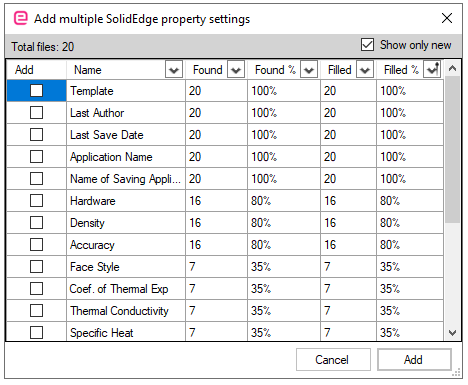
Choose this option to add multiple new file properties from Solid Edge at once. This requires you to already have some data loaded from SolidEdge. The following pop-up shows every property that was found and will add all checked rows as new settings. For each property the Found/Filled columns show how many of your loaded files actually have that property (and if it is filled). Note that it is already sorted by Filled %, don’t forget to remove this sort if you want to apply different filters/sorting
Add Teamcenter essentials
TeamCenter essentials only has a few properties that are mapped to TeamCenter, This button will add settings for those properties.