

The SolidEdge Edit Mode and Engineering Data Migration Tab both have the following button: 
With this button you can apply custom logic automatically to the table, this can be configured in the Property modify settings explained below
Property Modify settings
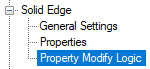
To configure custom property modify logic, navigate to settings > SolidEdge > Modify logic:
By default you should see an ‘example data prep' entry with it’s logical steps
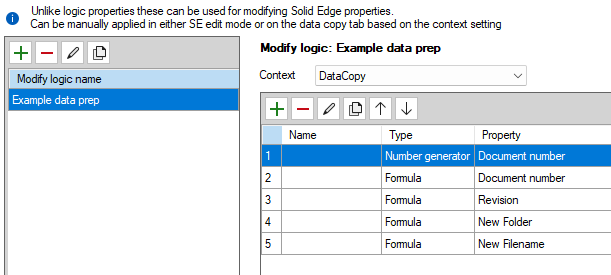
Here you can add/edit/remove logical steps that get executed when pressing the 
These logic properties function mostly like the property logic that are executed when loading. The important difference is that for these are not persistent and that they will only apply property values to the table.