

General Settings
Changes in this category results in Solid Edge related actions. For instance, you can decide how data can be retrieved from Solid Edge.
Go to Settings>>Solid Edge>>General Settings
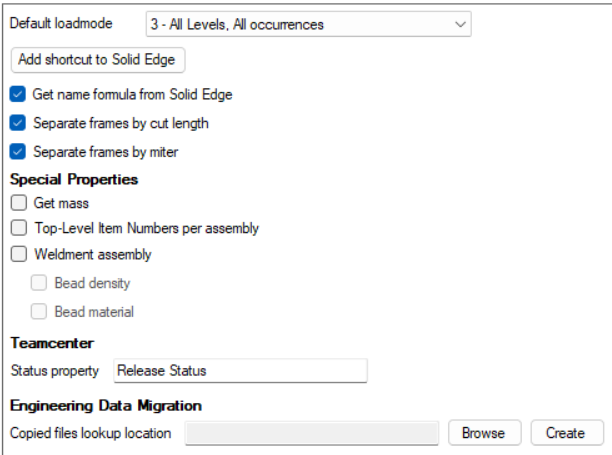
The General Settings include the following items:
Default Loadmode
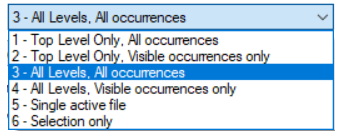
The default load mode defines how the active document in SolidEdge should be loaded. Click on the arrow to see which options are available:
Add to Solid Edge Toolbar
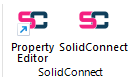
Click this button to add a shortcut button for SolidConnect and the Property Editor to the home toolbar of Solid Edge. The buttons look like this:
Get name formula from Solid Edge
Solid Edge features a name formula system that customizes occurrence names in the pathfinder. (Settings > Helpers > Document name formula)
By selecting ‘get name formula from Solid Edge,’ SolidConnect retrieves this setting, replacing the name formula in the General Settings of SolidConnect.
Separate frames by cut length or miter
Solid Edge features various unique types that share the same underlying part file but differ in specifics. A prime example is a frame, which is based on its cross-section but can have unique lengths and cuts for each occurrence. These settings allow for specific checks of these unique objects, extracting their distinct properties and treating them as separate parts.
Cut length
When frames are found, the cut length will be retrieved and added as a property. If two frames share the same base file but have different lengths, they will be added as separate documents.

Miter
When frames are found, all cut angles are retrieved and added as a property. If two frames share the same base file but different angles, they are added as separate documents. Note that there are 6 values to describe these angles.

Get mass
This setting enables retrieving the mass, because mass is a unique property that must be handled differently (especially for frames). Although this process is slower and requires parts to be activated in Solid Edge, but it yields better results than reading mass from a variable, or one exposed via file properties.
Top-Level item numbers per assembly
Usually when retrieving occurrence item numbers from SolidEdge you would need to use the exploded item numbers setting if you want all occurrences to get an item number. However if you have top level item numbering on all assemblies, you can enable this setting to make SolidConnect get the item numbers for the top-level from each assembly separately.
Weldment assembly
Enabling this setting adds extra properties to each product, it adds an ‘IsWeldmentAssembly’ property, set to True or False, based on whether the Solid Edge document is marked as a weldment assembly. You can also select checkboxes to read and include bead density and material properties.
Status property
For SolidConnect to properly read the status of Teamcenter files you will need to enter the name the status is mapped to in Solid Edge. For On-Premise solutions this will likely be “Release Status” for Teamcenter X Essentials this should be “ItemRev_REL_STATUS”.