

When Solid Edge data becomes messy and inconsistent, cleanup is often slow and complex.
DataCopy allows you to build a clean copy by:
-
Copying files to new filenames and folder structures
-
Fixing properties with automated logic
-
Preventing duplicate data
-
Replacing complex, multi‑step workflows
DataCopy is a great tool for:
-
Data prepping for upload to TeamCenter
-
Data prepping for SEDM implementation
-
Aligning different data sources (from different companies)
The DataCopy primarily copies your data to build a new clean copy of your data. DataCopy prevents duplicate data by remembering what data has already been copied even if renamed, it however does not detect duplicate data in your original data. Properties are changed on the copied file, keeping the original intact except for one thing, it saved a property to the original file which saves the path of the copied file. These property changes can be automatically filled using property modify logic, the same feature as the SE edit mode on the products tab. DataCopy prevents duplicate data by remembering what data has already been copied even if renamed, it however does not detect duplicate data in your original data.
Usage
The first time requires some extra setup, explained below under 'configuration'.
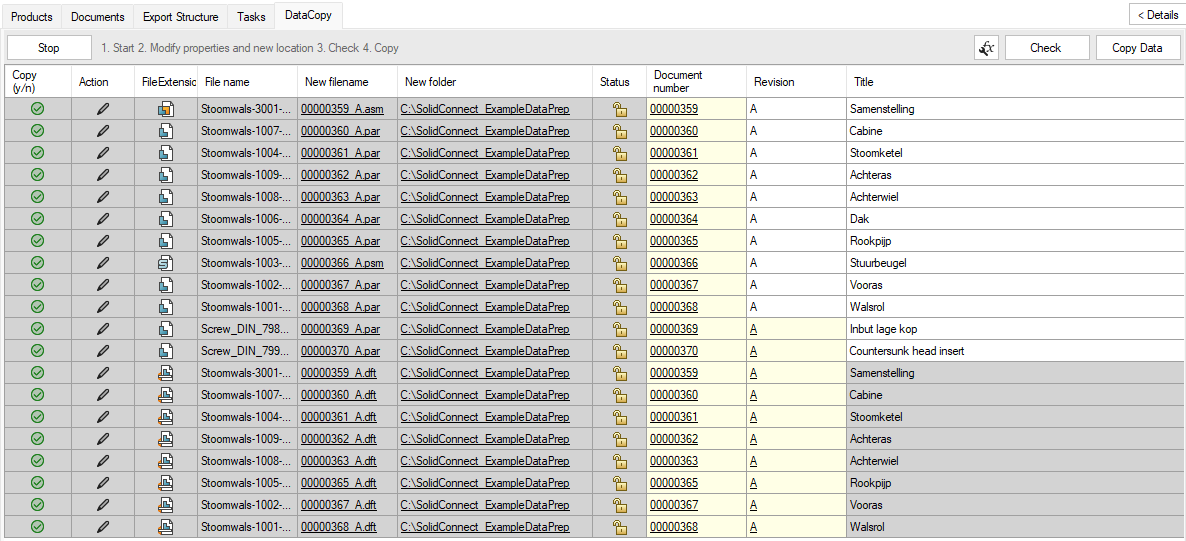
If this setup is done, and you have some data loaded in SolidConnect, you can start a DataCopy with the start button on the top-left. After a moment you should see a table of files appear. The table shows current properties of each file, or a product property it is associated with.
You can change any cell that is not greyed out to clean up your data manually. More importantly, the 
Some columns are frozen and cannot be disabled or moved, this includes the ‘new filename' and ‘new folder’ columns. These columns are intentionally greyed out, this is because we enforce you to only set this column’s value via property modify logic, ensuring you build your new vault using consistent logic and to avoid error-prone manual entry. By default you should see an 'example data prep' entry when clicking the
After you are satisfied with the changed properties and new filename and folder shown in the table, you should press the check button and then verify the first two columns: Copy (y/n) and Action. The copy column shows whether the file will be copied or not. The action column shows whether any properties will be changed, or if only links to that file will be changed.
If you have verified everything, you can press the Copy Data button on the top right to perform the copy.
Remembering copies
SolidConnect will remember where files were copied to by saving the new path in a file property 'SC_DataCopy_Reference' of the original file. If the file cannot be found at that location, this is ignored. Additionally old and new filepath is written to a lookup file, this will need to be configured before you can start.
Warning: because this reference is saved to a property in the original file. It is not advised to continue working with a file that has been copied. For example, if you would save it as a new file, that new file would have a reference to the same copied file.