

This guide will explain a few basics first steps for configuration:
-
Which Solid Edge properties to use in SolidConnect
-
A basic analyze rule to check if you have incorrect properties
The best way to do start configuring is to first make sure you already have some data loaded, open a small assembly so you can quickly try your first settings in SolidConnect.
Then go to settings, press the
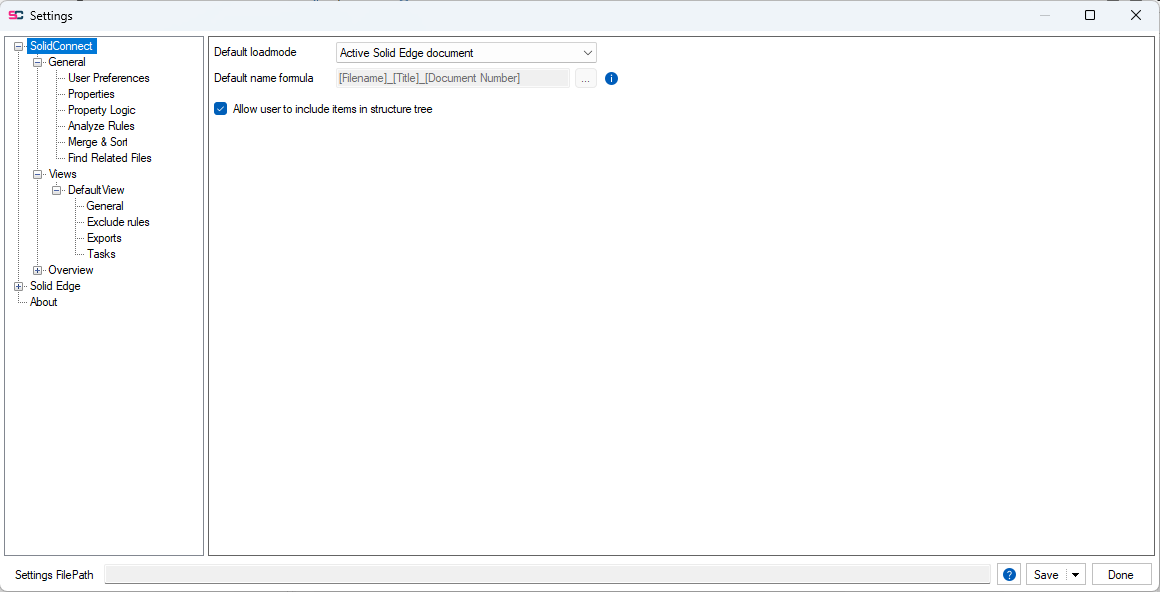
This is where all settings are configured, organized in multiple pages at the left side.
More about Settings
Shortcut in SolidEdge
The first thing we recommend you to do in the settings is to go to the SolidEdge settings page
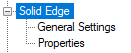
Then press the button 
This will add a shortcut for SolidConnect to the home ribbon in SolidEdge. With an easy way to access SolidConnect, it can become a part of your workflows, leading to better data.
Solid Edge properties
The next thing you should want to configure is what SolidEdge properties SolidConnect should be loading. Navigate to the properties settings page under Solid Edge
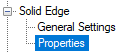
Then press the 

Then the following popup will show:
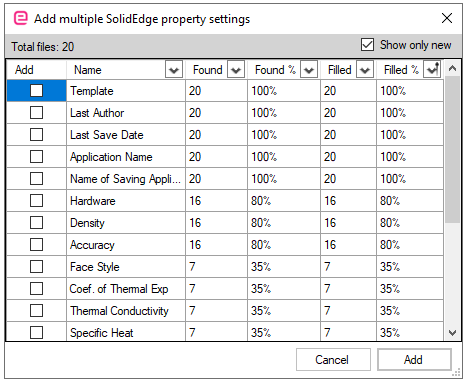
Now you can scan the list of properties and just use the checkbox to make a selection of properties you want to load. When you are done, press Add, and Save the settings altogether. The next time you load, you should see the new properties in the details panel. (You can also right-click on a column title in the products table to add these new properties)
Read more about SolidEdge property settings
First Analyze rule
The most important step to better data is by defining rules. Open the settings again and navigate to analyze rules
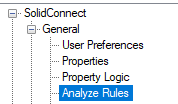
Here click the 
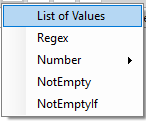
Then choose a property that should only allow specific values (for example, category should only allow: Fasteners, Cables, etc.)
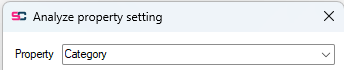
Then press the 
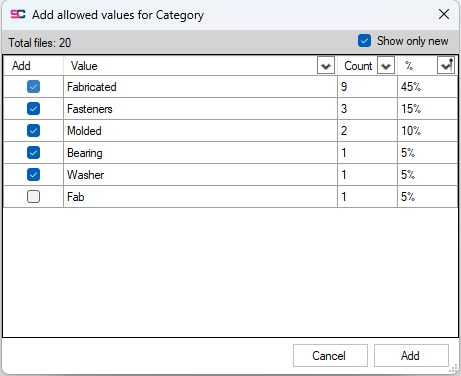
Here you can check a few values in the list you consider correct and press Add when done. You will then return to the analyze setting and should see the items in the list. You can add or remove values manually too.
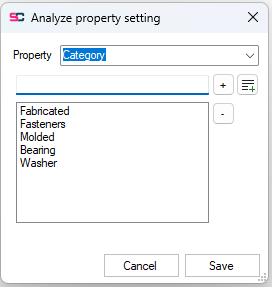
Now save this setting then save and close the settings window, and reload.
You should now see some highlighted cells if there are any files that do not have a correct value, with the specific property highlighted in the property details panel. (On the top right you can open the details panel, here you see all properties of the selected Product)
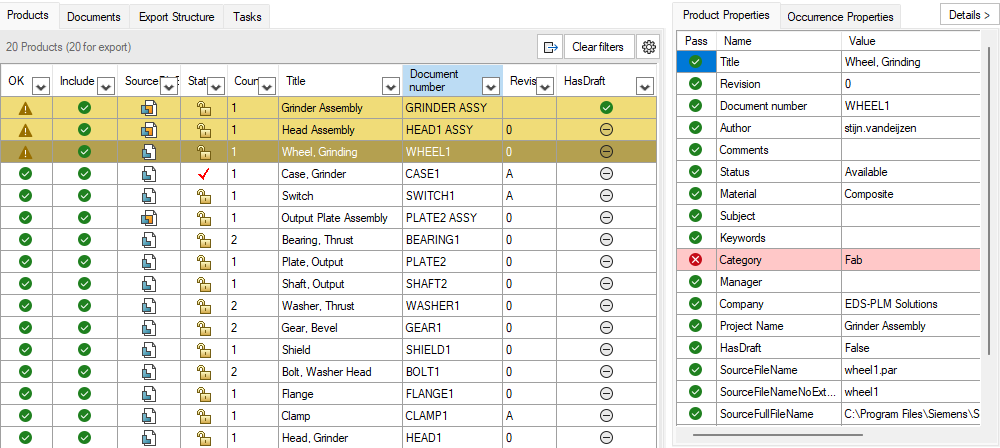
More settings
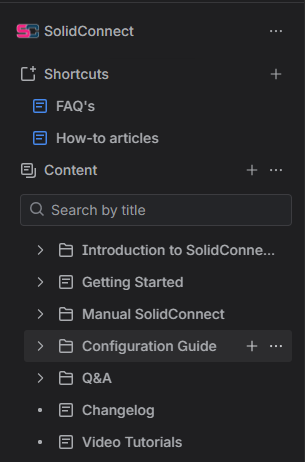
This is just the beginning of the many settings SolidConnect has to configure, for an explanation of each setting, look under the Configuration Guide folder of the navigation bar of this website:
Possible next steps:
-
Tasks: automatically generate files like stp or pdf
-
Exports: save all SE data to a file to import in ERP
-
HasDocument: check if you have a draft or other file
Or check our Q&A pages:
FAQ - How-to - Troubleshooting