

SolidConnect offers options to customize which occurrences are included for actions like exporting and publishing. There is a manual and an automated data-driven option. Regarding the latter, there is an 'Exclude rules setup' located in the settings, in which you can define the rules. When parts or assemblies should not be exported or only partially, these rules help you automate these decisions based on properties. When loading the assembly, these rules check for any property fulfilling the defined condition.
📘 Instructions
-
Option 1 - manual action:
-
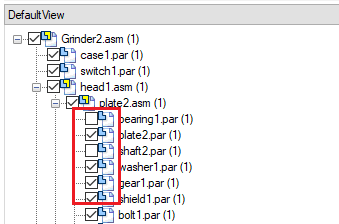
Check or uncheck the occurrence in the tree view
-
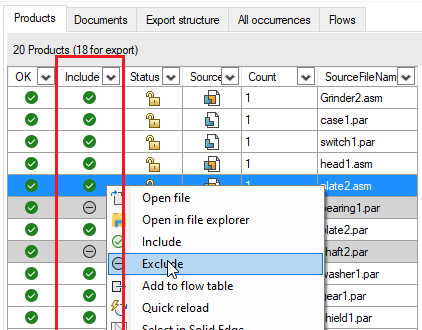
In the Products tab: in the include/exclude column, right click a cell >>click on include/exclude
-
-
Option 2: Automated data-driven option:
-
Open a document in Solid Edge>>open SolidConnect
-
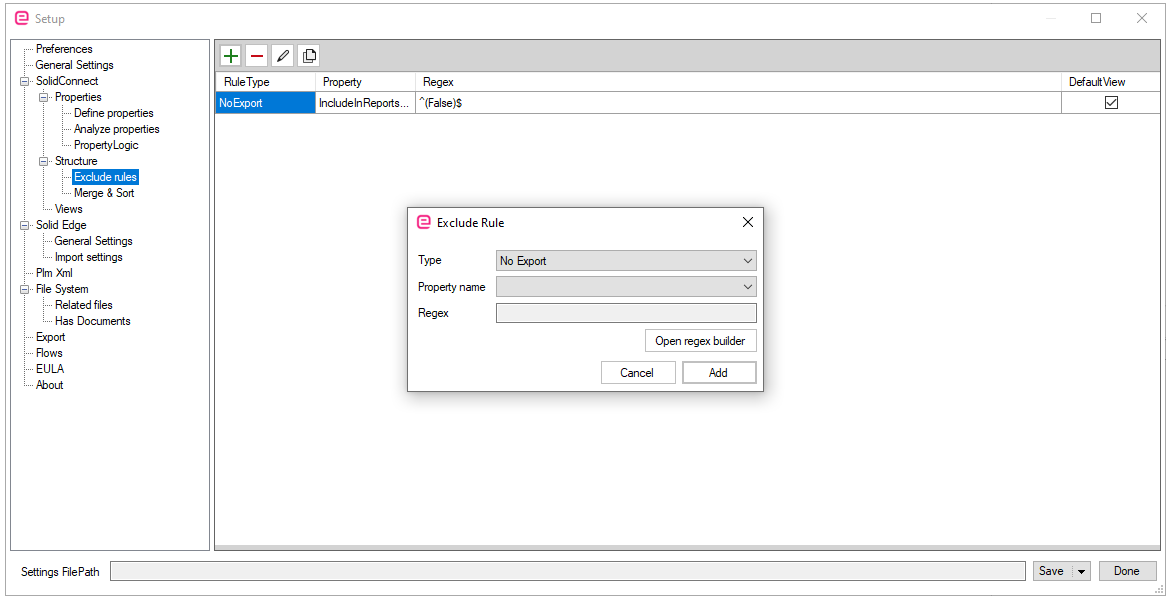
Click on Settings>>Structure>>Exclude rules
-
Click on plus sign. A 'Exclude Rule'-window opens up
-
The type has three value options:
-
No export: Do not export this assembly or sub-occurrences. Example: walls.
-
Only children: Do not export this assembly, but export sub-occurrences. Example:
Help/dummy assemblies for placing multiple parts at once: bolt, washer, nut. -
No children: Export this assembly, but do not export sub-occurrences. Example: bearing.
-
-
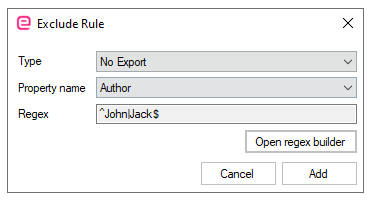
In this example we do not export parts or assemblies if they were created by Jack or John
-
For more information on regex, please have a look inside our user manual at this section.
📋 Related articles