

Click on the load button to import data into SolidConnect. By default, this loads the active Solid Edge document with all levels and occurrences. You can change the default load mode in the settings as described here.
Click the arrow on the right side of the button to select a specific load mode. You can customize the default load mode in the settings.

Loading a Solid Edge document may take some time, depending on the number of parts. If you adjust the settings or main screen of SolidConnect, you may need to extract data from the Solid Edge document again for the changes to take effect.
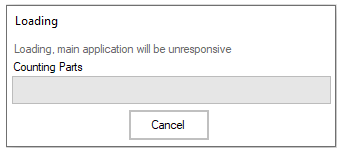
After clicking the load button, a loading window will appear. To stop the loading process, click the cancel button. Note that some processes, such as activating parts in Solid Edge, cannot be interrupted, so you will need to wait for them to finish.
Load Modes
Click on the triangle/arrow next to the load button. The drop down list shows the following:
-
Active Solid Edge document: loads the active document from an already active Solid Edge application.
