

The import structure has a visual hierarchy (tree-view) representing your active assembly in Solid Edge. The tree view shows all parts (and sub-assemblies depending on the structure level you’ve chosen) of the assembly comparable with the tree of the Pathfinder in Solid Edge. The name shown for each part is configurable in setting. The checkmark allows you to manually change whether a part will be exported, settings to do this automatically will be discussed later. Ctrl + click to check/uncheck a part in the tree including all sub-parts. There are some differences with Solid Edge such as patterned items are not grouped inside a 'patterns' object like Solid Edge but are placed separately with the other parts but these have no functional impact.
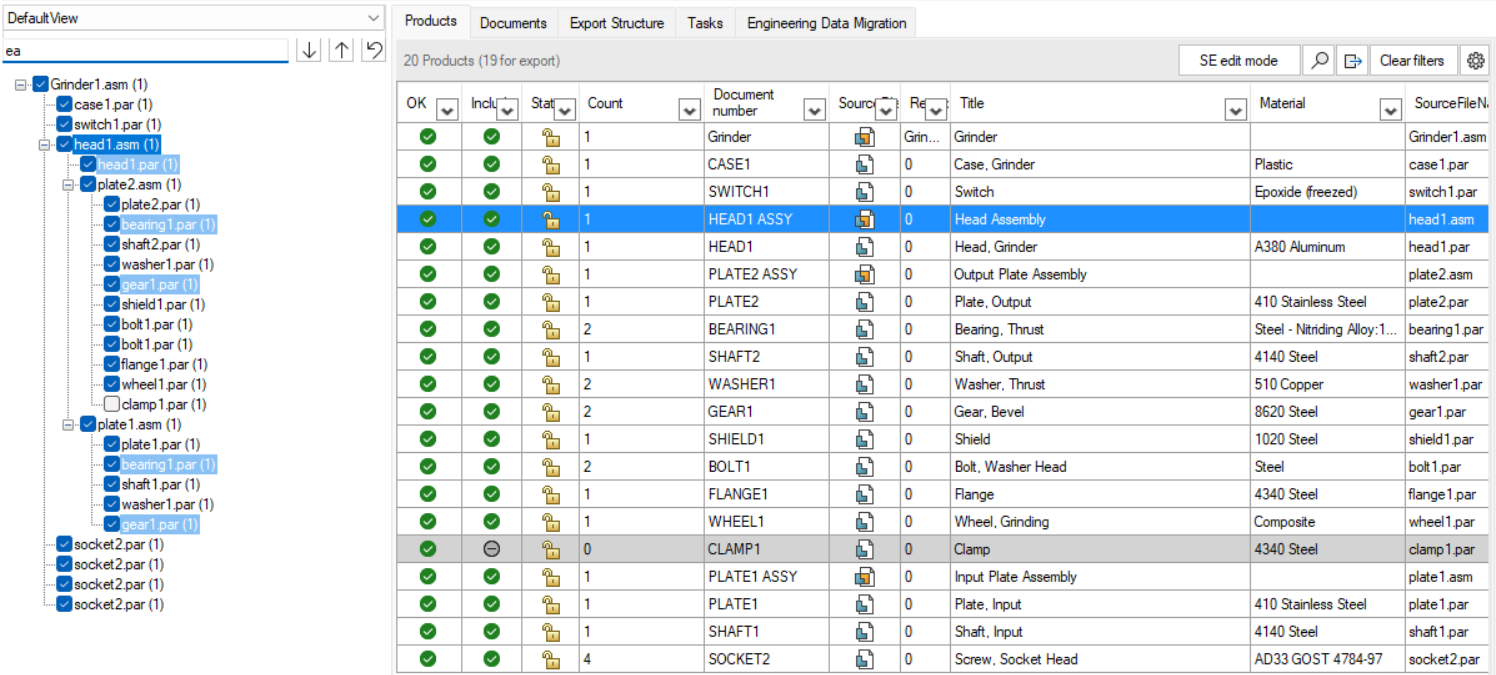
At the top of the Occurrence Treeview:
-

-

-

-

If you search + select an item in the Occurrence Treeview all items in the search will get highlighted and the first available item will be selected. This is also reflected back into other places in SolidConnect such as Products Tab, Documents Tab, Export Structure Tab and
Tasks Tab