

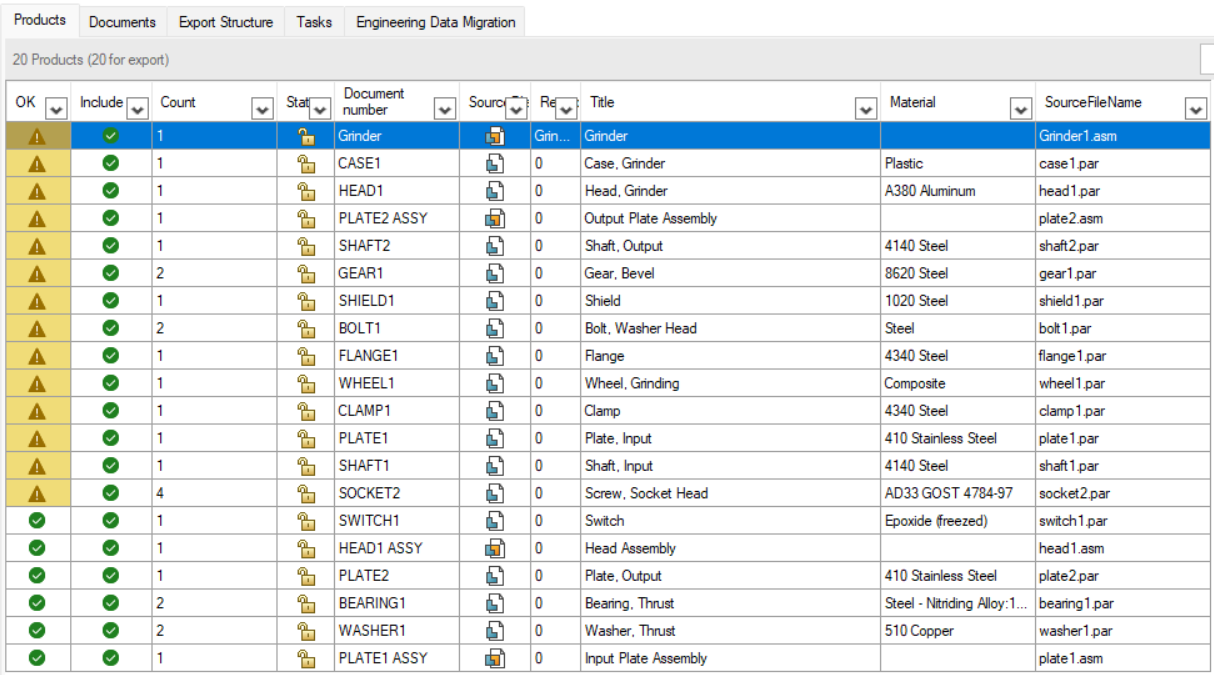
The products tab at the center of the application is an overview of all your products, you can see the count and properties of each product. You can use the right-click context menu for various actions
You can also edit these properties if you enter Edit mode
The table has a few columns by default:
-
OK - displays whether the file has any errors (not loaded) or warnings (bad properties).
-
Include - displays whether this file will be included for export or other further processing.
-
Status - displays the file status from Solid Edge Data Management (SEDM). For this, you need to
have a Status file property defined in the property analysis settings (See configuration). -
Draft - displays whether an associated draft file has been found. Notice, that only a draft
document with the same filename will be checked. -
Count - displays the amount of items in the assembly and will be included to the export.
-
Name - displays the name of the item.
The content table can be customized in the following ways:
-
Each column has a button to sort and filter rows. Note that multiple sort and filters can be activated at once. You can also easily clear all filters with the

-
Reorder columns by dragging the column header.
-
Resize columns by dragging the edges between column headers.
-
Show/Hide/Edit columns by right-clicking on any column header and (un)checking the column names. Here you can also click Edit to add any property you have defined in the settings (See configuration) as a column. Lastly you can press Reset to reset back to the default layout.
-
Add a new property column by right click on title bar>>Choose 'Columns'>>Checkmark your preferred property
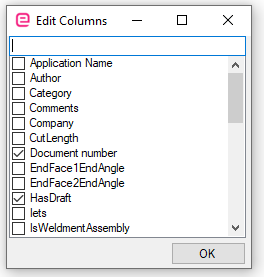
The cells can have the following colors:

Some products might appear in multiple rows when they are parts that have unique properties such as frames with differing lengths. At the top right is a clear filters button to clears all filters applied to any of the document columns (does not reset sorting)
Presets
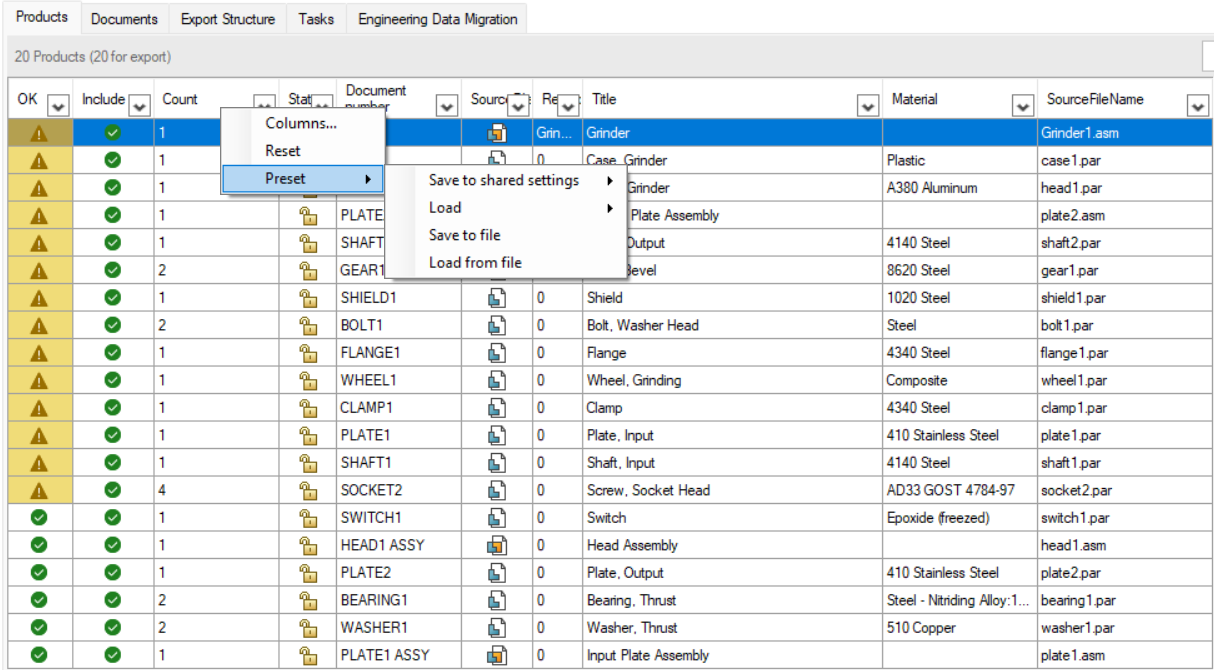
Right-click the column header to save the current product layout as a new preset. This lets you quickly switch between layouts. Because you can save the presets to the settings file, everyone using that settings file can easily re-use those presets. You can also save and load them as files.
Lookup Mappings