

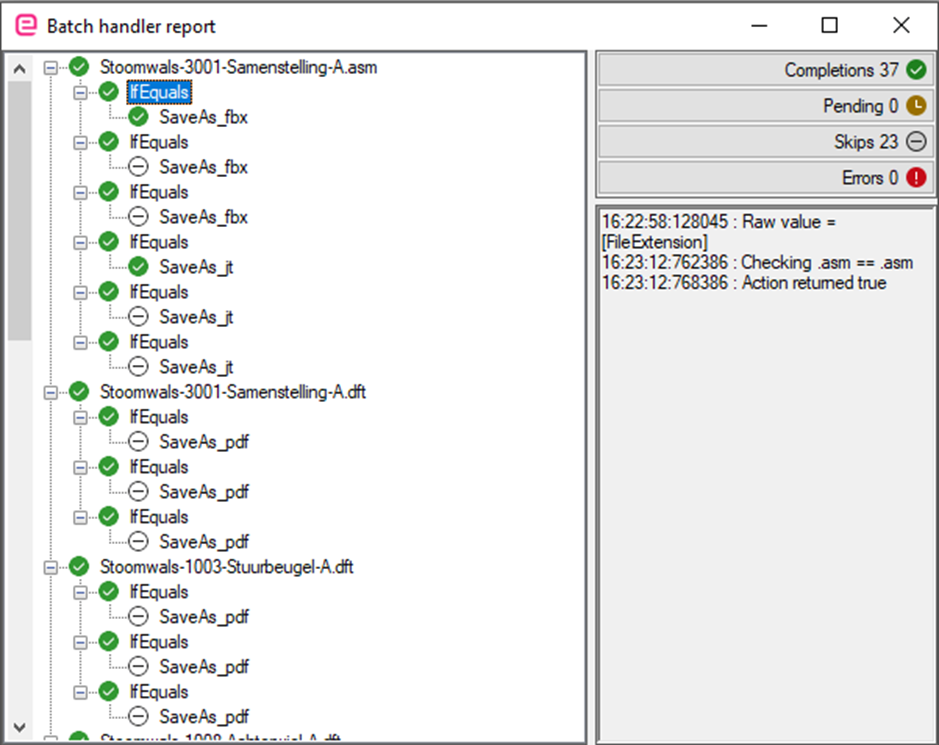
In this screen we can see that 37 actions completed successfully and 23 actions were skipped. If an action is skipped this is most likely due to a parent action returning either false or true, depending on what outcome the action was expecting.
The buttons on the top right are filter buttons, clicking one of these buttons will update the list to show files where that state is found. To go back to no filter click the button of the currently selected filter. This will revert to the original and full list. Clicking a file in this list will show you all logs from all actions of this file. By selecting a single action you will be shown only those logs, as shown in the image above.
If there are still pending actions this means the batch handler did not finish it’s process, you can continue this process by closing the report screen and clicking the “continue” button which is located in the dropdown menu of the “run batch” button.
If you encounter any errors please contact Enginia support and, share the action logs.